
How to Scan Receipts for Taxes on iPhone
Oana · October 28, 2026 · 5 min read
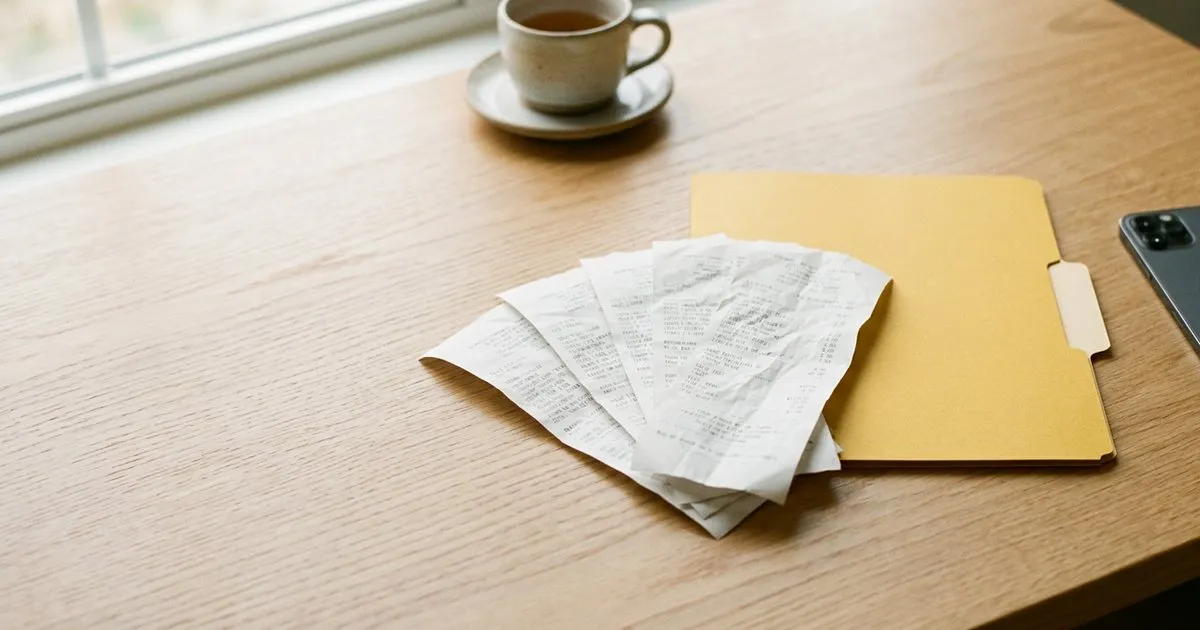
Tax season has a familiar shape. In March, you remember that the printer ink you bought in August was deductible. You know there was a receipt. You have no idea where it went.
It might be in the glovebox. It might be in a coat pocket, in a drawer, or in the bag you used on that one trip. And if it was printed on thermal paper, the kind most tills use, the ink may already be fading to a pale grey blur.
The fix is not a better memory. It’s a small routine you set up once: scan the receipt when you get it, and put it in the same place every time. Here’s how to do that on an iPhone.
Decide what’s worth scanning
You don’t need to scan every receipt for a coffee. A good rule is to scan anything you might need to prove later:
- Work expenses, equipment, software, and anything you buy for a business or side income
- Donations to charities
- Medical costs, if your country lets you deduct them
- Home office costs and repairs on a property you rent out
- Big purchases with a warranty, which you’ll want for a different reason
If you’re unsure, scan it. A scan takes a few seconds and costs nothing to keep.
The iPhone way, and where it falls short
Your iPhone can scan a receipt without any extra app. Open Notes or Files, choose Scan Documents, and hold the phone over the paper. We wrote a full guide to the built-in scanner if you haven’t tried it.
The scan itself is good. The problem is what happens next. In Notes, the receipt lands inside whichever note you had open, mixed in with shopping lists. In Files, it’s called Scanned Document 14.pdf and saved in whatever folder was open at the time. A year later, finding “the receipt for that laptop bag” means opening files one by one. Where scans end up depends entirely on where you were when you scanned.
That’s the part worth fixing, because it’s the part you’ll feel in March.
Set it up once: a Taxes folder
The routine only works if every receipt goes to the same place, so start with one folder. Call it Taxes, or Taxes 2026 if you prefer a folder per year.
In Pockli Scan, a folder can have its own rules: how files are named, how much they’re compressed, and whether the text is read so you can search it later. For receipts, a good setup is a name that starts with the date, and a smaller file size, since a grocery receipt doesn’t need the resolution of a signed contract. Set it once, and every scan into that folder follows it. Folder rules are part of Pockli Scan Pro, which is a one-time purchase. The free plan lets you scan and organize without a trial or a time limit.
Whichever app you use, the principle is the same: pick the folder, decide the naming, and stop deciding after that.
Put it on your Home Screen
The routine breaks at the till, when you’re holding a bag and the receipt is already curling. So make the first step as short as possible.
Pockli Scan has a widget for your iPhone Home Screen. You can pin up to four folders, and tapping one opens the scanner already pointed at that folder. Pin Taxes, and the receipt is filed before you’ve left the shop. There’s no choosing an app, no choosing a folder, and no renaming later.
If you’d rather not use a widget, the same idea works with anything you can reach in one tap. The point is that “scan the receipt” should take less effort than putting it in your pocket.
A few habits that make scans clean
Flatten the receipt. Smooth it on a table, or press it against a flat surface. Curled paper gives curved text.
Use a dark surface. The edges are easier for the iPhone to detect against something darker than the paper.
Check the total. Take a second to see that the date and the amount are readable before you throw the paper away.
Finding it in April
This is where the routine pays off. When your accountant, or the tax form, asks for something, you don’t go looking. You open the Taxes folder, and everything is there, in date order, with names that make sense.
If you need one specific receipt, search for a word that was on it: the shop’s name, the product, the amount. Pockli Scan can read the text of your scans, so searching for any word inside it works even when you’ve forgotten what you called the file. Full-text search is part of Pro as well.
How long should you keep them?
It depends on where you live, so check your own tax authority. As two examples:
- In the United States, the IRS says to keep records for three years from the date you file in most cases, and longer in a few situations, such as six years if you left out more than 25% of your income.
- In the United Kingdom, HMRC says self-employed people should keep records for at least five years after the 31 January submission deadline of the relevant tax year.
This is general information, not tax advice, and your situation may differ. The good news is that a scanned receipt takes no space in a drawer, so keeping it a little longer costs you nothing.
Private by default
Receipts show where you shop, what you buy, and what you spend. Pockli Scan keeps your scans on your iPhone, and in your own iCloud if you turn on sync. There’s no account to create, no upload to us, and no servers of ours that hold your files.
Start with the next receipt
You don’t have to catch up on last year’s pile today. Set up the folder, pin it to your Home Screen, and scan the next receipt you’re handed. Next March, you’ll be glad you did. (If you do have a stack already, scanning it in one sitting is a good job for a quiet evening, and here’s how to keep the results organized.)
Pockli Scan is on the App Store. It’s free to try, with no account.
Try Pockli Scan
Your documents deserve a better home.
