
How to Organize Scanned Documents on iPhone
Oana · April 8, 2026 · 5 min read
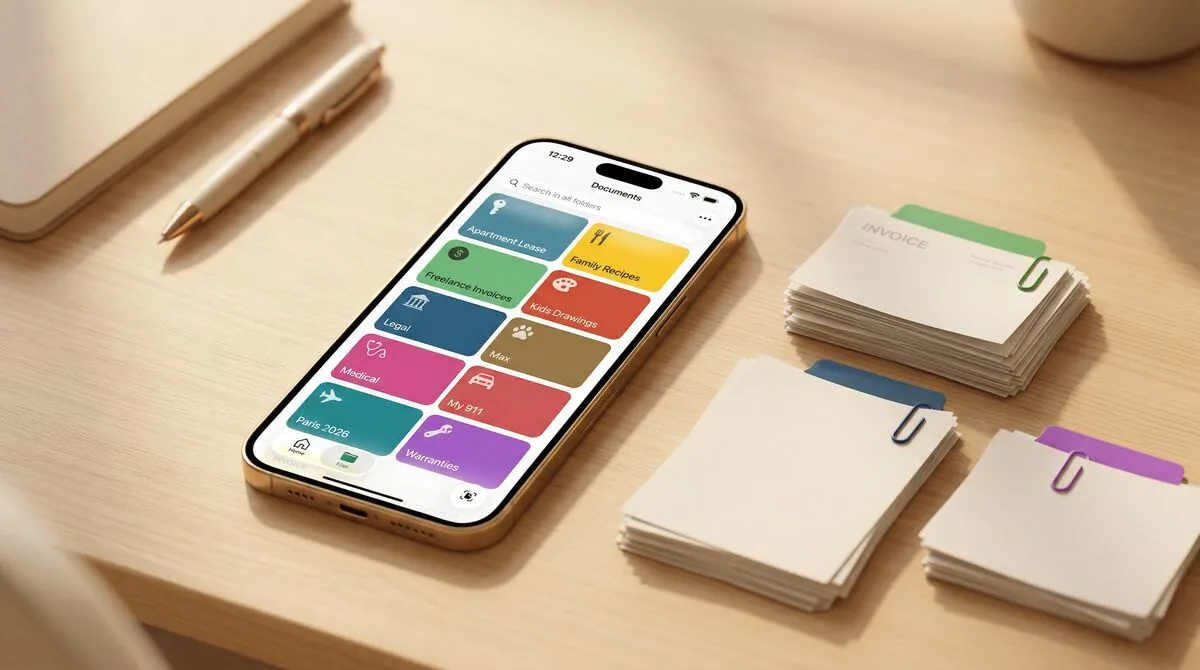
You’ve scanned the document. Now what?
If you’re like most people, it goes into a folder called “Scans” or “Documents” — a folder that already has 200 other files with names like IMG_4821.pdf and Scan_March_2026.pdf. You tell yourself you’ll organize it later. You won’t. Nobody does.
Three months from now, you’ll need that document — at the mechanic’s, at the pediatrician’s office, on the phone with your insurance company — and you’ll spend ten minutes scrolling through a wall of identical-looking PDFs, opening each one, hoping it’s the right one.
There’s a better way.
Why organizing scanned documents is so hard
The problem isn’t you. It’s that most scanner apps treat organization as an afterthought.
They make the scanning part effortless — point your camera, auto-detect the edges, save a PDF. Done. But then what? You get a file called Scan_20260411.pdf dumped into a flat list alongside everything else you’ve ever scanned.
The naming is useless. There’s no structure. And because it takes effort to rename and sort every single scan, you stop bothering. The pile grows. And the next time you need something, you’re back to scrolling and opening files one by one.
The real issue is that scanning and organizing are treated as two separate tasks — and the second one always falls on you.
The system that actually works
The trick is to eliminate the organizing step entirely. Not by being more disciplined — by removing the need for discipline.
Here’s how it works in practice.
1. Think in categories, not files
Before you scan anything, think about the kinds of documents that pass through your life. Most people have a handful of recurring categories: car documents, medical records, kids’ school papers, tax receipts, insurance, home maintenance.
Each of these categories becomes a folder. Not a generic “Documents” folder — a specific, named folder for a specific type of document.
2. Set up your folders with rules
This is the part that changes everything. In Pockli, each folder can have its own rules for how scans are handled — a naming convention, compression settings, and OCR preferences. You set these up once, and every document that goes into that folder follows them automatically.
For example:
- Your Car folder names files as
Car — Insurance 001,Car — Registration 002,Car — Service Receipt 003. High quality, OCR enabled. - Your Receipts folder names files by date:
Receipt — 2026-04-11. Compressed to save space. - Your Kids folder names files by child and document type:
Emma — Vaccination Card,Emma — Report Card.
You never rename a file again. You never think about compression. You just scan, and the folder handles the rest.
3. Scan into the right folder — not into a pile
The key habit is to scan into the category folder, not into a generic inbox. When a document arrives — a receipt, a letter, a form — you open the right folder and scan directly into it.
This takes the same amount of time as scanning into a pile. But the result is completely different: your document is named, sorted, and findable from the moment it’s saved.
4. Use search when you need something fast
Even with great folder structure, sometimes you just need to find something fast. That’s where full-text search comes in.
With OCR enabled on your scans, every word inside your PDFs is searchable. Looking for your car insurance policy number? Search for it. Need the receipt from that hotel in March? Type the hotel name. The document comes up instantly — no browsing, no opening files to check.
Real-life examples
Here’s what this looks like in practice for a few common situations.
At the mechanic. They ask for your insurance card. You open your Car folder — it’s right there, first file, clearly named. Total time: five seconds.
Tax season. Your accountant asks for all medical receipts from the past year. You open your Medical folder, and every receipt is named with the date and provider. You select them all and share. No digging through camera rolls.
School registration. They need your child’s vaccination records, birth certificate, and proof of address. Each one is in its own folder, clearly named. You pull them up on your phone while standing at the front desk.
Insurance claim. You need the home inspection report from two years ago. You search “inspection” and it appears — even though you couldn’t remember which folder it was in. The words inside the document are what brought it up.
What about the documents you’ve already scanned?
If you already have a pile of unnamed scans, you have two options.
First, you can import existing documents into the right folders. If you have PDFs saved on your device, import them directly into the right Pockli folder — the folder’s rules will rename and organize them just like a fresh scan. You can also open any PDF in Pockli using the share extension from other apps like Files or Mail. It’s the fastest way to clean up what you already have.
Second, you can simply start fresh going forward. The next document that comes in, scan it into a proper folder with rules. Over time, the old pile matters less and less because everything new is organized from the start. And when you do need something you haven’t moved yet, search can usually find it by the text inside the document.
The three-second workflow
The whole point of this system is that organizing happens automatically. Here’s what it looks like in Pockli:
- Open a folder
- Point your camera and tap
- Put your phone down
That’s it. The folder’s rules name the file, set the quality, and run OCR. Your document is organized, searchable, and exactly where you’ll look for it months from now.
No renaming. No dragging files. No “I’ll organize this later.”
Download Pockli and scan your first document into a folder with rules. It takes three seconds — and you’ll never go back to the old way.
Try Pockli Scan
Your documents deserve a better home.
