
What If Organizing Documents Took Zero Effort?
A document and PDF scanner for iPhone that handles everything — from scan to searchable, organized file.
Everything at a Glance.
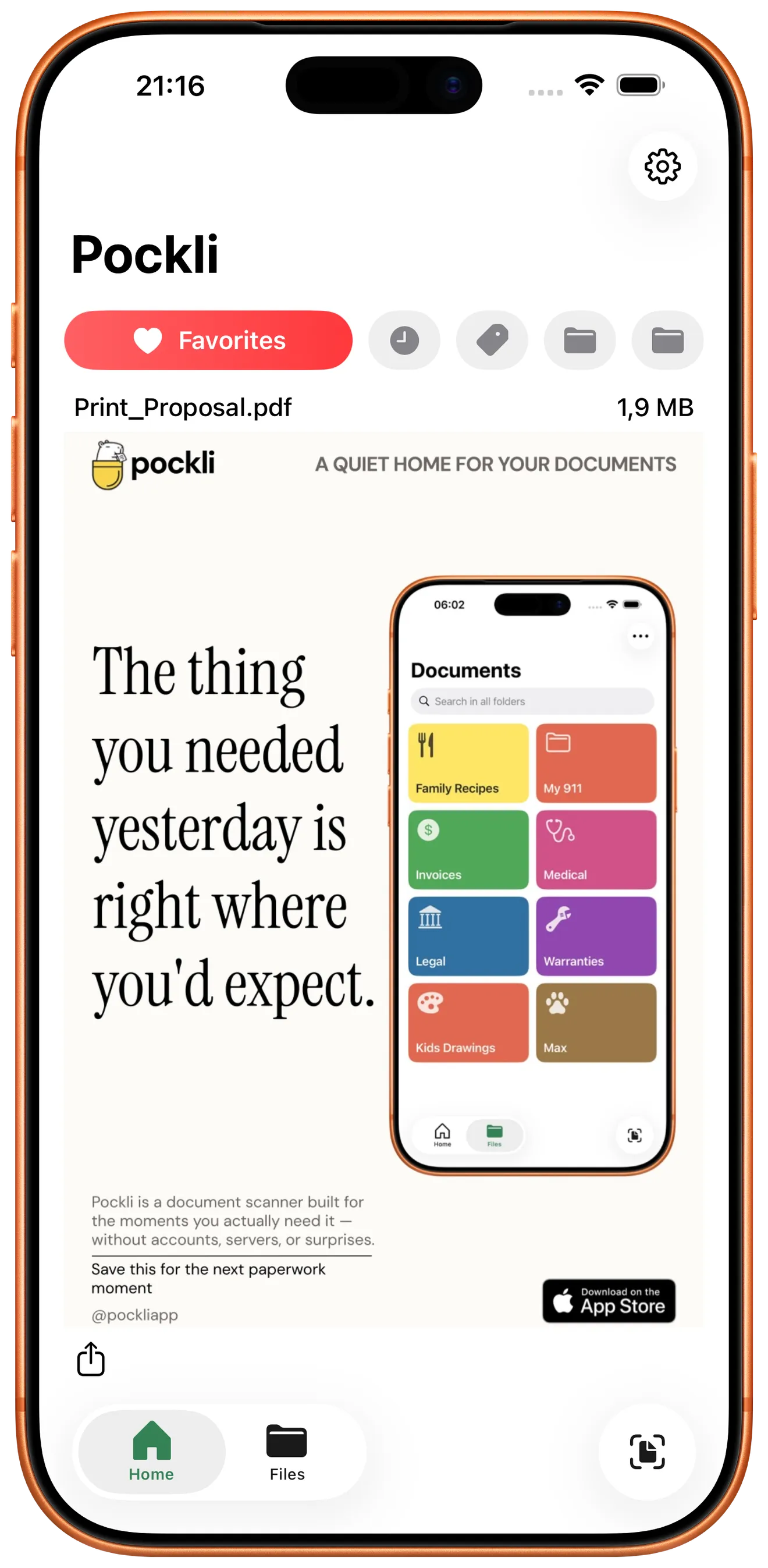
What good is an organized app if it takes five taps to find what you need? If staying organized takes effort, it won't last. The best system is one that puts your most important things right where you'll see them.
The home screen is designed around how you actually use your documents. Your favorites are front and center, recent scans are one tap away, and your two most-used folders sit right in the bottom bar for instant access. Tags help you find documents across folders without duplicating them. No digging, no navigating, no extra taps — just the documents that matter, ready when you are.
Find It in Seconds.
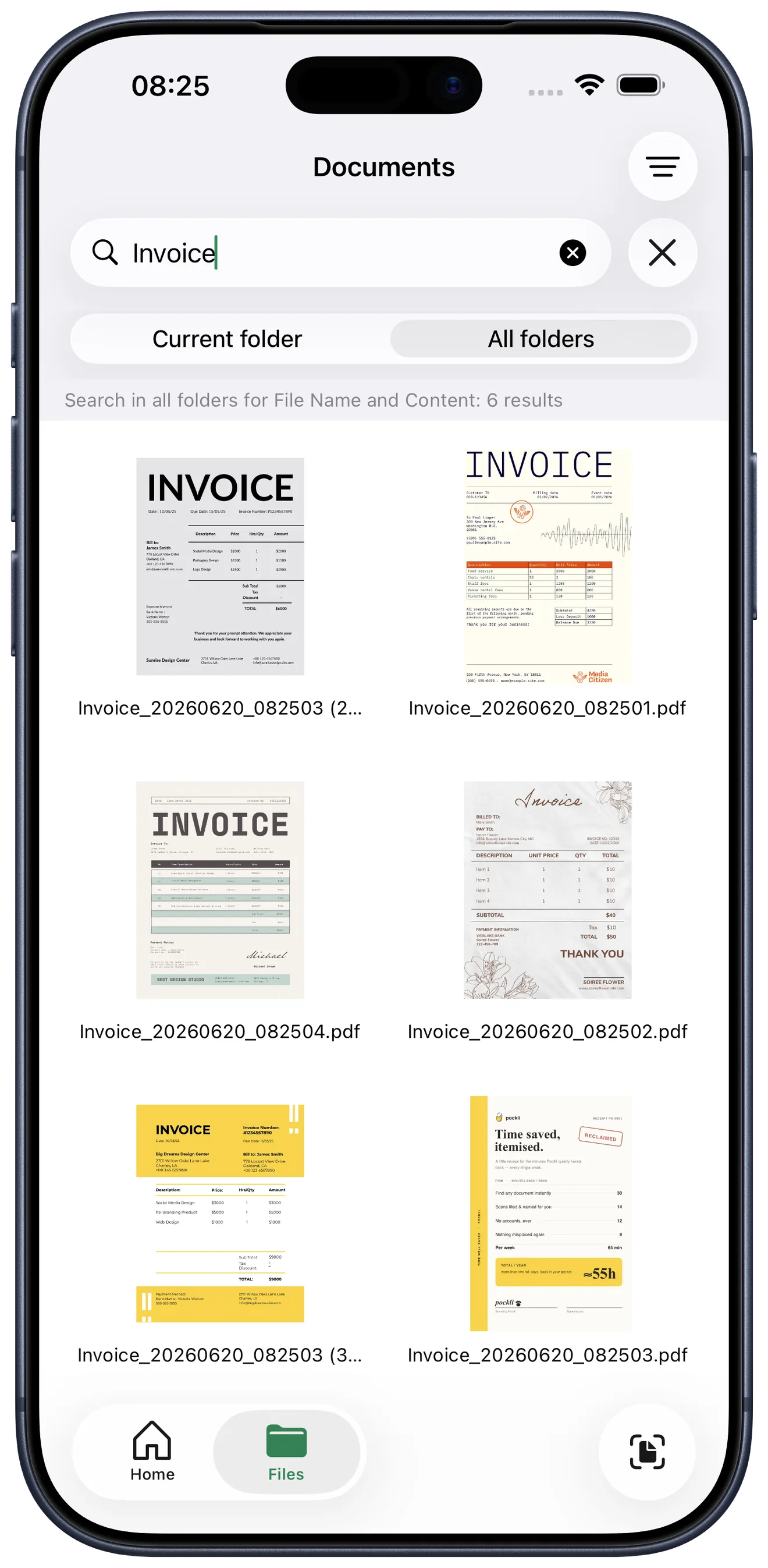
You know it's somewhere. You scanned it. You're sure of it. But where? Which folder? What did you name it? The harder you look, the more frustrating it gets — and the more you wish you'd just kept the paper.
Start typing and the answer appears. Pockli Scan reads every word of every scan — typed or handwritten — and embeds it invisibly in your PDF, so you can search by file name or by the words inside the document. That warranty from last year, the vaccination record you need for school, the invoice your accountant just asked for — one search, and it's there. No scrolling through folders, no opening files to check. Pro unlocks full text recognition, so every document becomes searchable the moment it's saved.
Scan in a Snap.
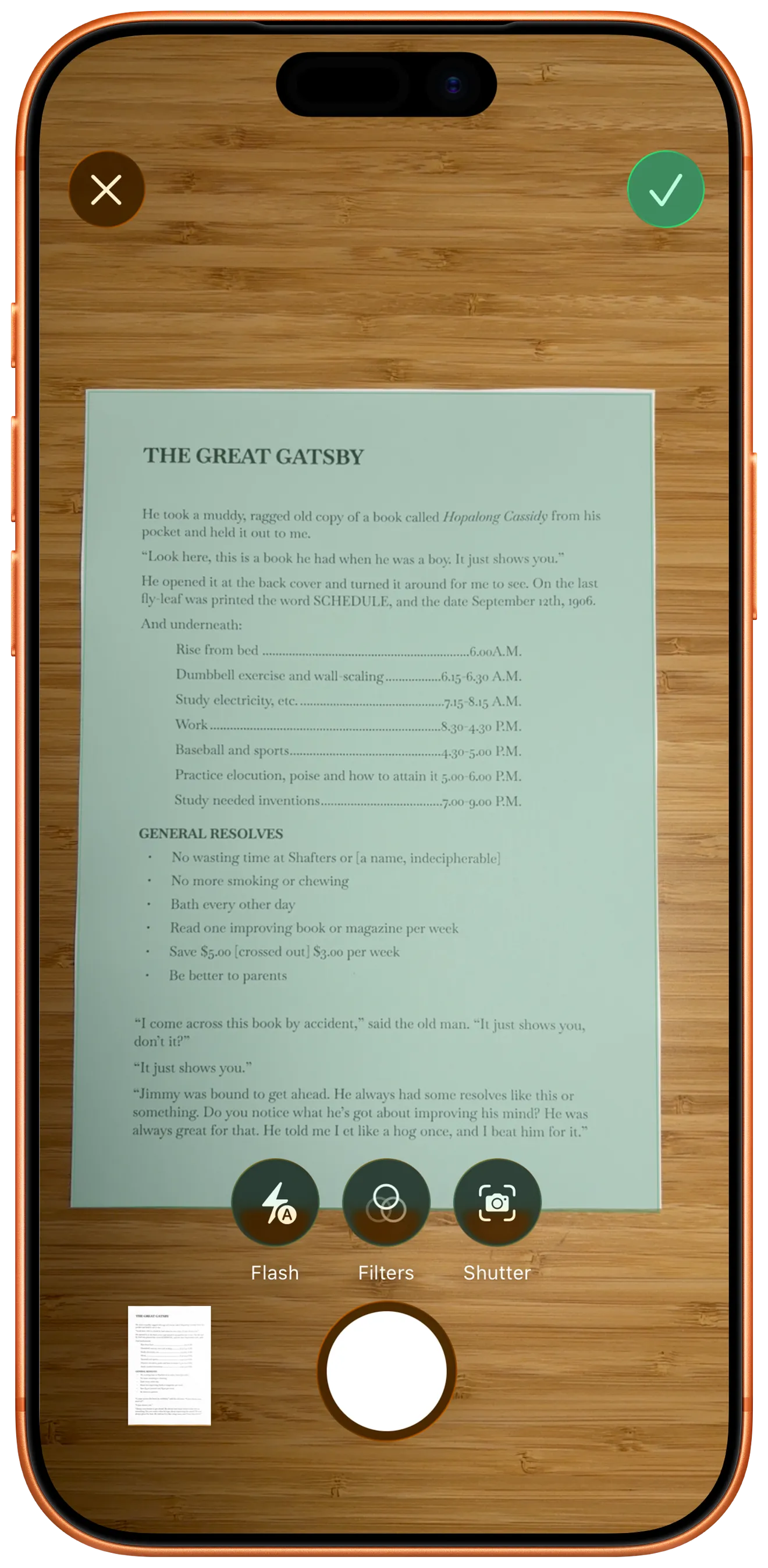
You know the drill. A letter arrives, a receipt needs saving, a form needs to go somewhere safe. You take a photo and promise yourself you'll organize it later. Later never comes.
That moment can be effortless. Point your camera at any document and tap once — edges are detected, perspective is corrected, and a clean PDF is created automatically. Whether it's a single receipt or a twenty-page contract, every page comes out clean and crisp. And if auto-detection needs a hand, you can always fine-tune the edges yourself.
Mark It Up. Sign It. Send It.
Why does signing a document in 2026 still involve a printer? A contract arrives by email. You print it, sign it by hand, scan it again, and hope the quality holds up. There has to be a better way.
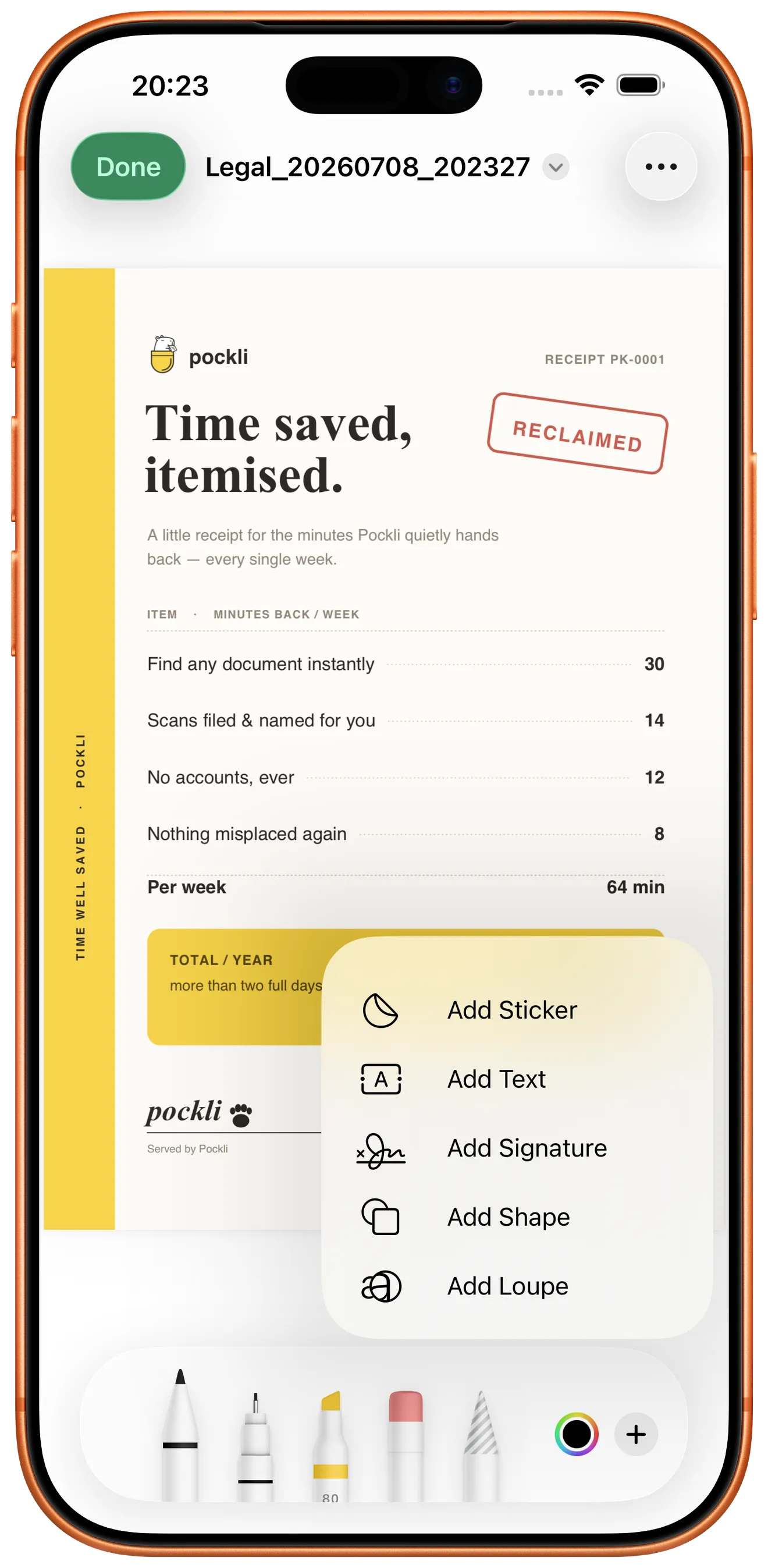
There is. Annotate, highlight, and sign documents right on your iPhone. Use your finger or Apple Pencil to add a signature, circle important sections, or write notes directly on the page. Annotations are non-destructive — the original text stays selectable underneath. When you're done, share the finished document straight from Pockli Scan. No printing, no re-scanning, no extra apps.
The Right Size. Every Time.
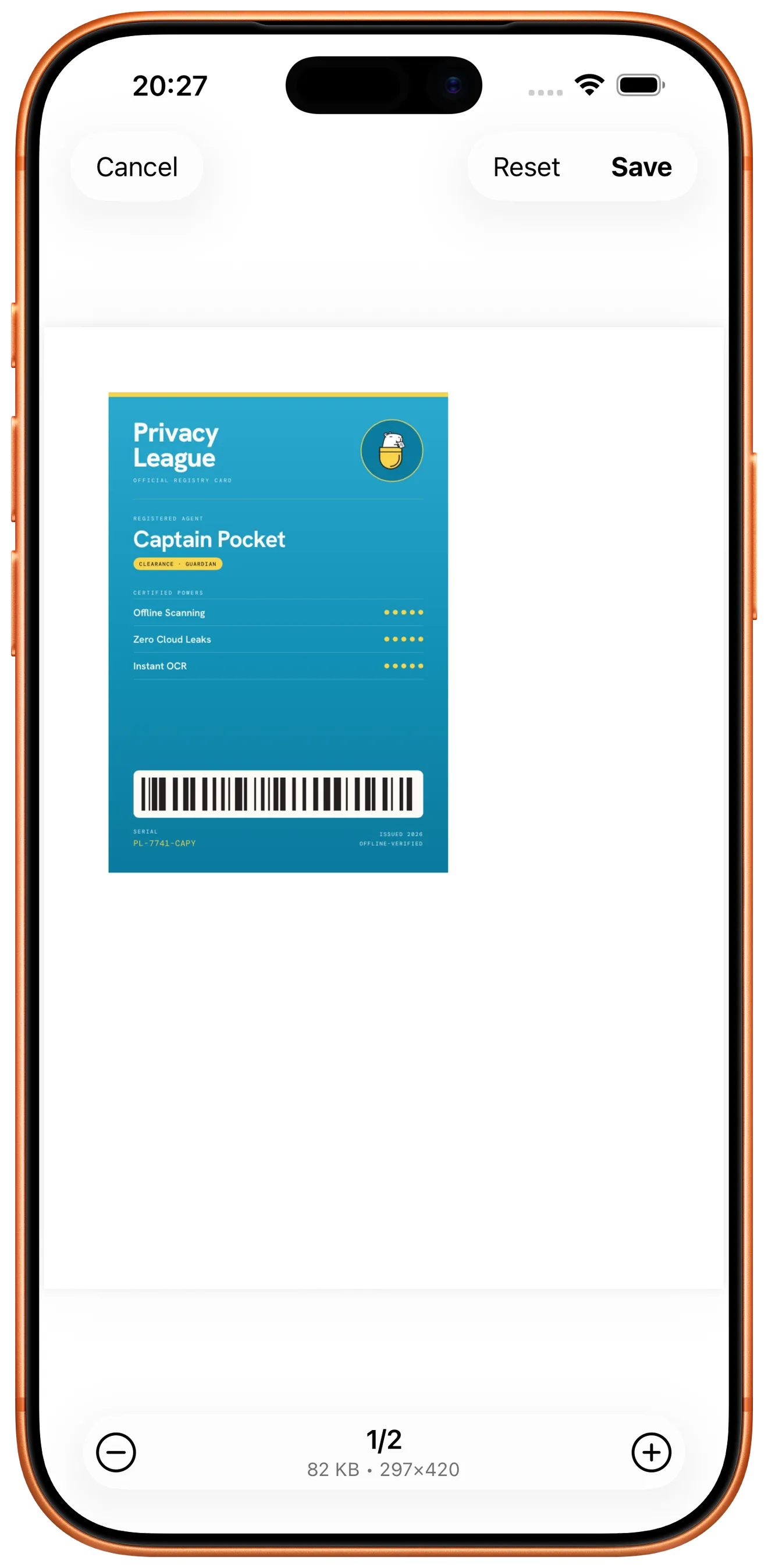
Ever printed a scanned ID card and watched it stretch across an entire A4 page? Way too big, completely wrong proportions. It happens with every scanner app and the iPhone camera. The document looks fine on screen — but the moment you print it, the size is all wrong.
Resize any scan before saving — choose from simple presets like 1/1, 1/2, 1/4, or 1/8 to match the actual size of your document. Your ID card prints at ID card size. A business card stays compact. A receipt doesn't waste an entire sheet of paper. One tap, and the document is sized the way it should be — on screen and on paper.
Do More with Less.
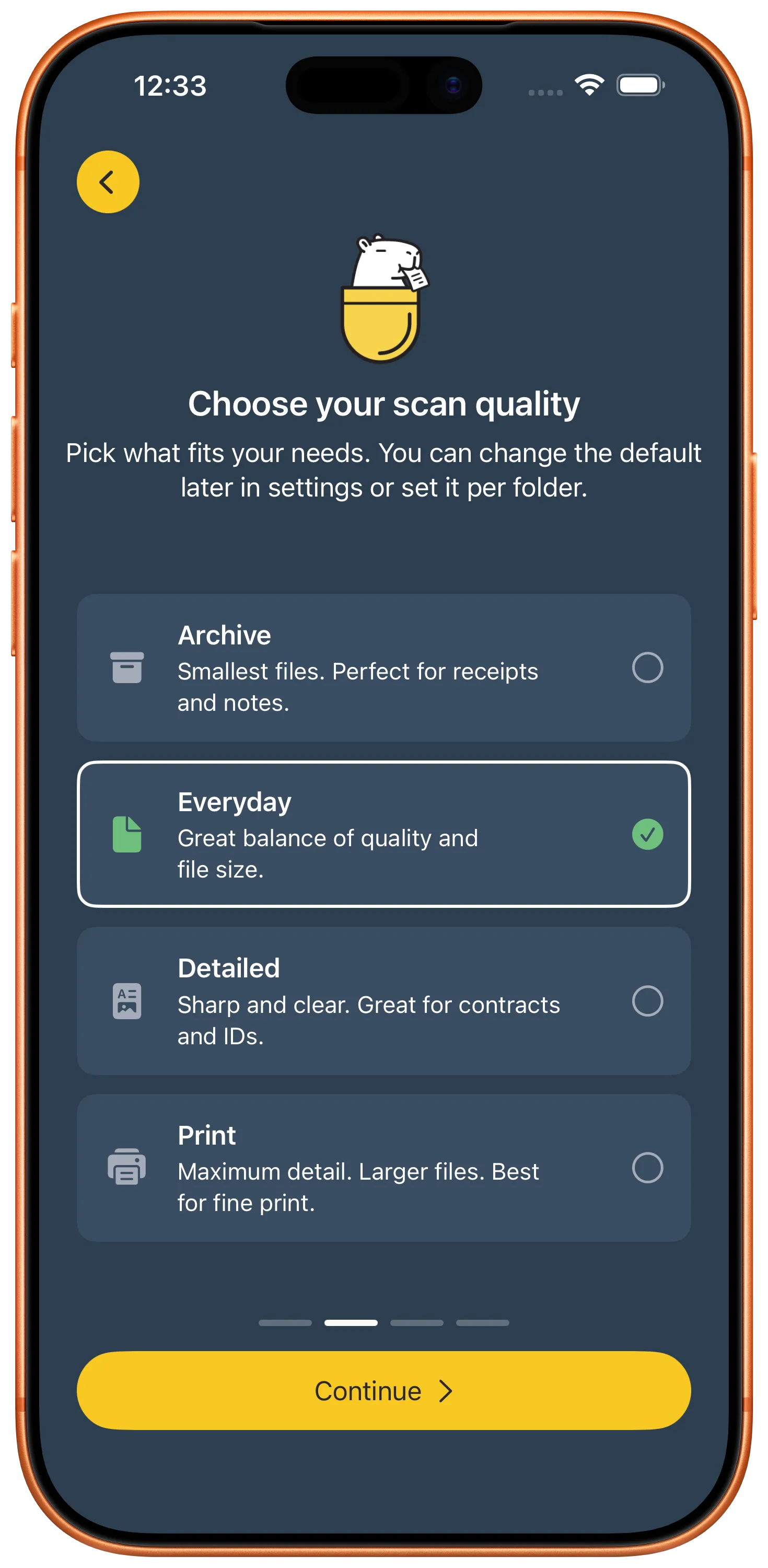
Does a grocery receipt really need the same resolution as a signed contract? Most scanner apps think so — maximum file size, every time. That's wasted space for documents you'll never zoom into.
Four scan quality levels make the choice for you — Archive for the smallest files, Everyday for daily use, Detailed for important documents, and Print for when every pixel matters. Set it once per folder and forget about it. Your receipts stay lean, your contracts stay crisp. The right quality for the right document, handled automatically.
Your Folder, Your Rules.
How many times have you scanned a document, then had to rename it, pick a format, choose a quality — all over again? Most scanner apps leave that friction to you. Every single time. It's the kind of small annoyance that makes you stop scanning altogether.
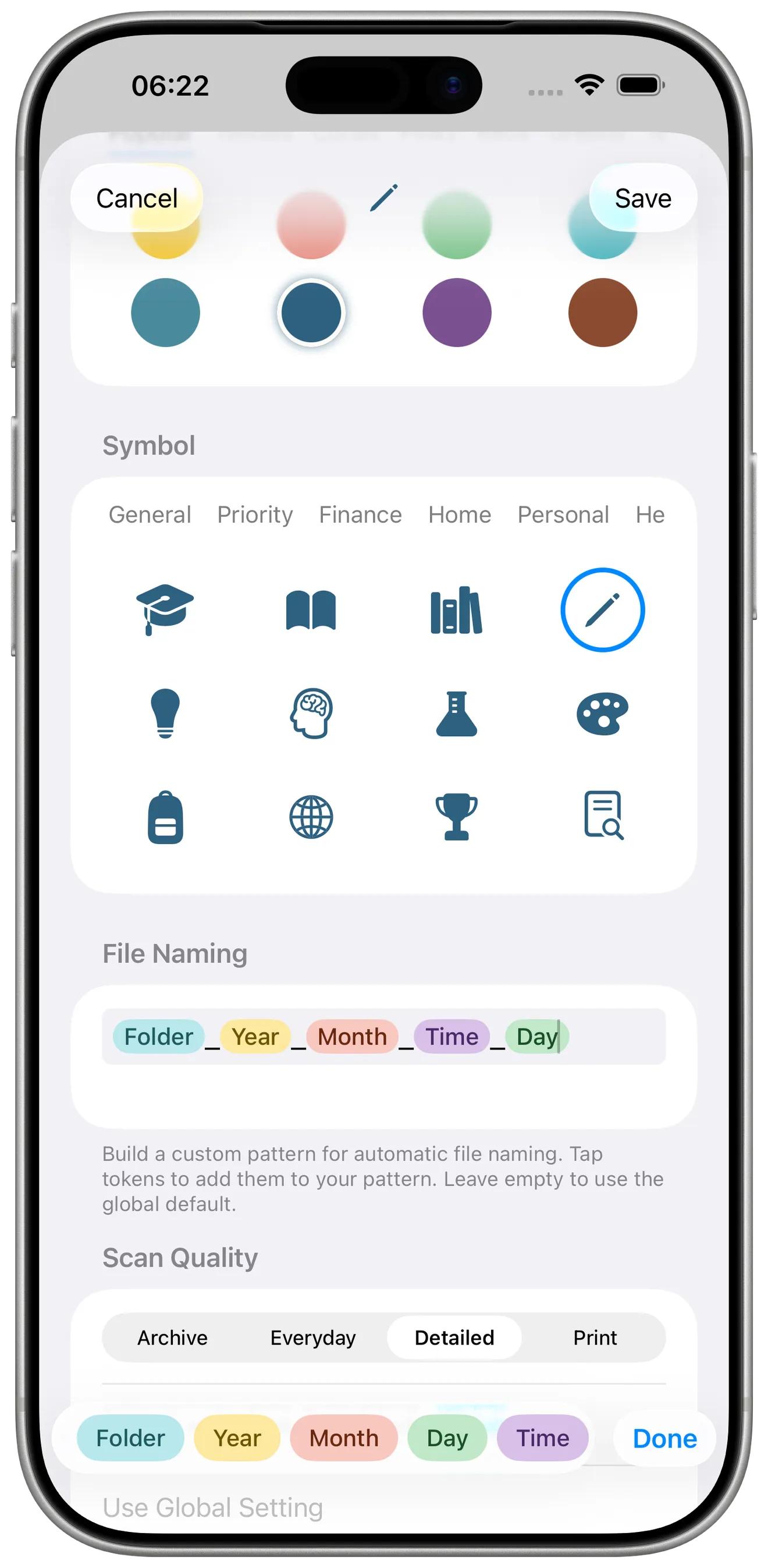
With Pockli Scan, each folder remembers how you like things done. Set a naming convention, compression quality, and OCR settings once — and every scan into that folder follows your rules automatically. Your medical folder names files by date and uses high quality. Your receipts folder keeps files small. Make each folder unmistakably yours with 96 colors and 96 symbols — medical records get one look, travel documents another, kids' school papers their own. You set it up once, and it just works from then on.
Questions About Features
Do I need to create an account?+
No. Pockli Scan works without an account, without a login, and without sharing any personal information. Just download and start scanning.
How does scanning work?+
Point your camera at any document and tap once. Pockli Scan detects the edges, corrects the perspective, and enhances clarity automatically. You can also import existing PDFs and images from your photo library or files.
What are folder rules?+
Each folder in Pockli Scan can have its own settings for naming convention, compression quality, and OCR. When you scan a document into a folder, those rules are applied automatically — so every file is handled exactly the way you want.
Can I search inside my documents?+
Yes. With OCR enabled, Pockli Scan extracts text from every scan — typed or handwritten. You can search by file name or by text inside the document.
Can I import documents I've already scanned?+
Absolutely. You can import existing PDFs and images into Pockli Scan. They'll be organized and searchable just like freshly scanned documents.
How many folders can I create?+
As many as you need. You can customize each folder with a name, color (choose from 80 options across 10 families), and symbol (96 symbols across 8 categories) to match how you organize your life.
What are the scan quality levels?+
Not every document needs the same resolution. Pockli Scan offers four quality levels: Archive for the smallest files, Everyday for daily use, Detailed for important documents, and Print for when every pixel matters. Set it once per folder and it applies automatically — your receipts stay lean, your contracts stay crisp.
Every document you'll ever need — named, organized, and findable in seconds.
Stop searching. Start finding.

Free to start. Pro is a one-time $19.99 — no subscription.
Not ready yet? Get notified when we add features or run promotions.
You're on the list! We'll keep you posted.