
Where Do Scanned Documents Go on iPhone? (And Why They're So Hard to Find)
Oana · May 4, 2026 · 5 min read
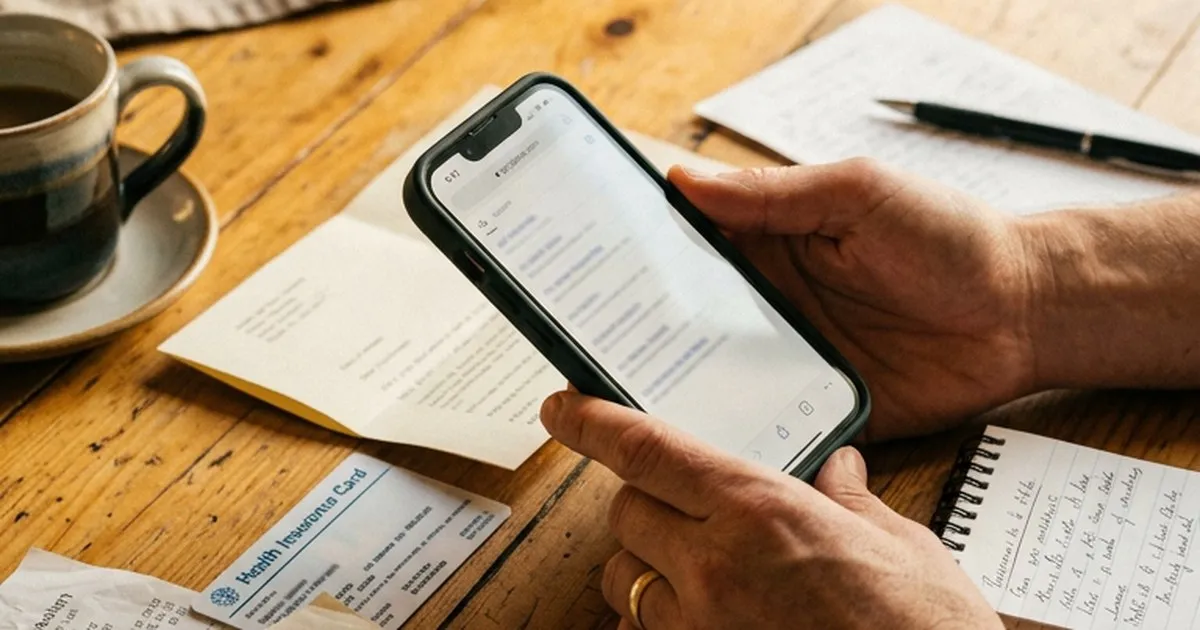
You scanned the document. You’re sure of it.
You remember holding your iPhone over the page, watching the edges snap into place, tapping Save.
Now it’s three weeks later. You’re standing in a waiting room. Someone asks for your insurance card. You open your phone… and it’s gone.
Not in Photos. Not in Files. Maybe Notes? You open a few folders, scroll through a dozen PDFs named “Scanned Document,” and none of them look right.
What happened?
The real problem isn’t scanning. It’s what happens after.
The iPhone is a great scanner. The camera works, edge detection works, OCR works — and because every scanning app on iOS uses the same Apple APIs under the hood (VisionKit for capture, the Vision framework for text recognition), the actual scanning is essentially identical no matter which app you pick. Notes, Files, Mail, Pockli, third-party scanners — they all produce comparable PDFs from comparable hardware. There’s no secret scanning sauce on this platform.
What’s different between all these places is what happens after the scan. Where the file goes. What it’s called. Whether you can find it again next month. That’s the unsolved problem on iPhone — and it’s why the same document can feel impossible to find three weeks later.
There is no single place where all your scans go. Where your document ends up depends entirely on where you were when you scanned it. And that’s the part most people don’t remember.
If you scanned in Notes
This is where a lot of scans end up by accident. You’re already in a note — jotting something down in a meeting, writing a list — and you tap the camera icon, choose “Scan Documents,” and capture a page.
The scan is saved inside that specific note. Not as a separate file. Not in the Files app. Not in iCloud Drive — Notes uses its own iCloud Notes system, which is separate.
Notes does have an attachment browser, accessible through the folder options in recent iOS versions, that shows every scan across your notes in one grid view. But what you get is a wall of tiny thumbnails with no meaningful filenames, no folder structure, and no labels you set. To find your insurance card, you still have to tap into each thumbnail one by one.
Search can help — Notes recognizes text inside scanned attachments using the same Apple Vision OCR every iPhone scanning app uses, so the recognition itself is solid. The real limit isn’t the OCR. It’s that Notes was built for notes, not for documents. Your insurance card is one entry among hundreds of grocery lists, meeting notes, and recipe screenshots, and the app gives you no real way to separate it from the rest.
If you scanned in the Files app
This is the most “file-like” experience, and the most findable of the iPhone defaults, because Files has a real search bar at the top of the screen.
When you scan from Files (three-dot menu → “Scan Documents”), the document is saved in the folder you were browsing when you started. The default name is something like “Scanned Document.pdf,” with subsequent scans auto-incremented — “Scanned Document 2,” “Scanned Document 3,” and so on. None of those names tell you anything about what’s inside.
That means two things. If you don’t remember the folder, browsing is hard. And if you didn’t rename the file, recognizing it among other scans is harder still.
Search is your best friend here. Files can often find documents by filename, and on recent iOS versions, by words inside the PDF itself when the document has a searchable text layer. The OCR doing that work is the same Apple Vision framework that powers text recognition across iOS — so its strengths and limits are consistent everywhere, not unique to Files. The Files-specific catch is that search reaches broadly across iCloud Drive, so unrelated PDFs that happen to share a word can crowd your results — useful, but not surgical.
If you scanned from Mail
This is one of the easiest ways to “lose” a scan. You’re replying to an email that asks you to scan something back. You scan it directly from Mail’s compose view — the attachment menu has a scan option — send the reply, and move on.
The scan is attached to that email. That’s it. It is not automatically saved anywhere else — not in Files, not in Notes. Unless you saved a copy manually or remember which email you sent, the scan only exists in your Sent folder.
If it’s actually just a photo
This one causes a lot of confusion. If you used the Camera app instead of a scanner — just a regular picture from your camera — it’s not a scan. It’s an image. It lives in your Photos library, saved as a JPEG or HEIC rather than a PDF.
The good news: your iPhone can still recognize text inside images via Live Text, so you can search Photos and Spotlight for words that appear in the picture. The bad news: it’s not a document file, it’s mixed in with screenshots and selfies, and converting it into a single PDF — possible via Share → Print → pinch out, or via a Shortcut — is a manual extra step rather than something the camera does automatically.
So if you’re certain you “scanned” something but can’t find it anywhere, check Photos. There’s a good chance it’s a photo, not a scan, and you’ve been looking in the wrong app the whole time.
If you used a third-party scanner app
Every scanner app is its own world. Some store files locally, some sync to their own cloud, some integrate with the Files app, some don’t — usually depending on settings you may or may not have set.
The practical result: if you scanned in app A six months ago and app B today, your documents are split across libraries that don’t talk to each other. After a few months, you may not even remember which app you used at the time. Did you delete it? Did the subscription lapse? Are the files still in there?
Where iCloud fits into all of this
iCloud can help — but it doesn’t unify everything. The Files app syncs to iCloud Drive. Notes syncs to iCloud Notes, which is a separate system. Mail attachments live in your email. Third-party apps each have their own clouds.
So even with iCloud enabled, your scans are still scattered across separate systems — iCloud Drive ends up holding some of them, while the rest sit elsewhere, and you still have no single place to look.
So why is this so hard?
Because the system is built around context, not documents.
Your iPhone remembers where you were when you scanned. But you remember that you scanned something. That mismatch is the real issue.
If you scan occasionally, it’s fine — you can usually retrace your steps. But once scanning becomes a routine part of your life — receipts, forms, IDs, insurance cards, school papers — it breaks down quickly. You end up with multiple apps, generic filenames, and no single place to look.
A simpler mental model
Instead of asking “where did my scan go?”, the better question is “where was I when I scanned it?”.
If you were in Notes, check the note. If you were in Files, check the folder. If you were in Mail, check Sent. If you used the Camera, check Photos. If you used another scanner app, check that app’s library.
That’s how iOS works today.
Or you can skip the scavenger hunt
The scanning part of iPhone is solved. The camera, the edge detection, the OCR — all of it is right there in Apple’s frameworks, and every app on the platform (including Pockli) uses the same APIs to do it. There’s no secret scanning sauce we could build, and we didn’t try to.
What we built is the layer iPhone doesn’t have: a single home for every scan. One app where everything you scan goes — named the way you set up once, sorted into folders you choose, searchable by the words inside the document. You never have to remember which app you used or what you called the file, because there’s only one place it could be.
Everything still stays on your iPhone and your iCloud — no accounts, no servers we operate, no third party holding your files.
Download Pockli from the App Store and skip the scavenger hunt next time.
Try Pockli Scan
Your documents deserve a better home.
