
How to Scan Documents on iPhone — And Actually Find Them Later
Oana · April 11, 2026 · 6 min read
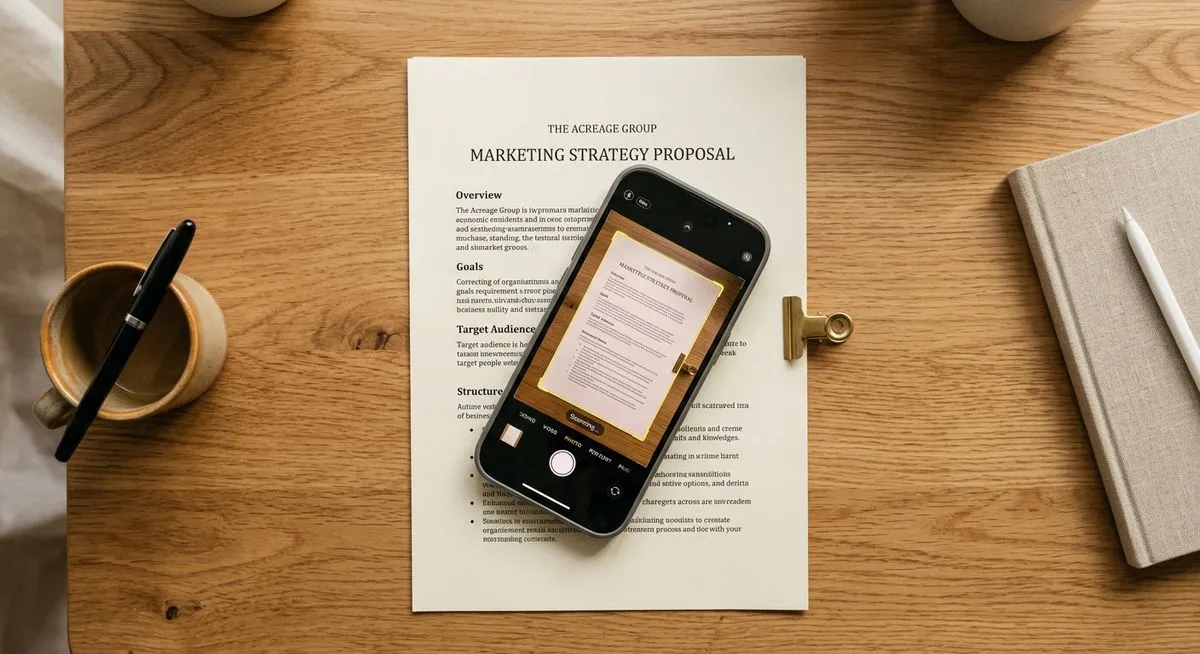
Your iPhone has a document scanner built right in. You might not even know it’s there.
But scanning is the easy part. The real question is what happens to that scan five minutes later — or five months later, when you need it and can’t remember where it went.
This guide covers three ways to scan documents on your iPhone, from the simplest to the most organized. Pick the one that fits how you actually work.
Method 1: The Notes app
This is the fastest way to scan a document if you just need a quick copy.
Open the Notes app, create a new note (or open an existing one), tap the camera icon at the bottom, and select “Scan Documents.” Hold your iPhone over the document — it’ll detect the edges and capture the scan automatically. You can adjust the corners if needed, then tap “Save.”
The scan lives inside that note as a PDF. You can share it, mark it up, or leave it there.
When this works well: Quick one-off scans — a whiteboard after a meeting, a receipt you need to text to someone, a page from a book. Anything you need right now and probably won’t need again.
Where it falls short: Notes doesn’t organize your scans. Each one is buried inside a note, mixed with everything else in the app. There’s no folder structure for documents, no automatic naming, and no way to search by what’s written inside the scan. If you scan your car insurance into Notes today, finding it six months from now means scrolling through every note you’ve written since then.
Method 2: The Files app
The Files app also has a built-in scanner, and it’s slightly better for organization.
Open Files, navigate to the folder where you want the scan saved, tap the three-dot menu at the top, and select “Scan Documents.” Same scanning experience as Notes — automatic edge detection, multi-page support. When you’re done, the scan saves as a PDF directly into that folder.
When this works well: If you already have a folder structure in Files or iCloud Drive that you maintain. The scan goes where you put it instead of into a random note.
Where it falls short: You still have to name every file manually. The default name is “Scanned Document” with a number. If you scan twenty documents into your “Car” folder, you’ll have twenty files called “Scanned Document 1” through “Scanned Document 20” with no way to tell them apart without opening each one. And there’s no OCR — you can’t search by the text inside the document.
Method 3: A dedicated scanner app
This is where things change if you scan documents regularly.
A dedicated PDF scanner app like Pockli does the same scanning — point your camera, auto-detect edges, create a clean PDF. But it handles everything that comes after.
In Pockli, each folder has its own rules. You set up a naming convention, compression quality, and OCR settings once, and every scan into that folder follows them automatically. Your “Car” folder might name files as “Car — Insurance,” “Car — Registration,” “Car — Service Receipt.” Your “Medical” folder names files by date and provider. You never rename a file again.
Every scan gets OCR — the text inside the document is extracted and made searchable. Six months from now, you can type “insurance” or “deductible” and the right document comes up instantly, no matter which folder it’s in.
And everything stays on your device and your iCloud. No accounts, no cloud servers, no third-party access to your documents.
When this works well: If documents are a regular part of your life — medical records, school forms, insurance cards, tax receipts, contracts, home maintenance records. Anything you need to find again months or years later.
Tips for better scans
Whichever method you use, a few things help you get cleaner results.
Use a dark surface. Place your document on a dark desk or table. The contrast helps your iPhone detect the edges more accurately.
Use natural light. Overhead lighting can create shadows. If you’re near a window, that even, diffused light works best.
Hold steady. Rest your elbows on the table and hold the phone directly above the document, parallel to the surface. This reduces distortion and gives you a crisper scan.
Check the result. Don’t accept the first scan if it’s blurry or the edges are off. It takes three seconds to redo it, and you’ll be glad you did when you open that PDF months later.
So which method should you use?
If you need a quick scan once in a while, the Notes app is fine. It’s already on your phone and it works.
If you want your scans saved as PDFs in a specific folder, use the Files app.
If you scan documents regularly and want them named, organized, and searchable without any manual effort, that’s what Pockli is built for.
The scanning itself takes the same three seconds in all three methods. The difference is whether you’ll actually find that scan when you need it.
Try Pockli Scan
Your documents deserve a better home.
